PP Launcher
macOS app launcher & window manager: fuzzy, pinyin and cross-field window search with a custom quick list.
PP Launcher (Fast Panel) is a macOS app launcher and window manager. Summon it with a global hotkey, then type to search system apps and open windows in real time.
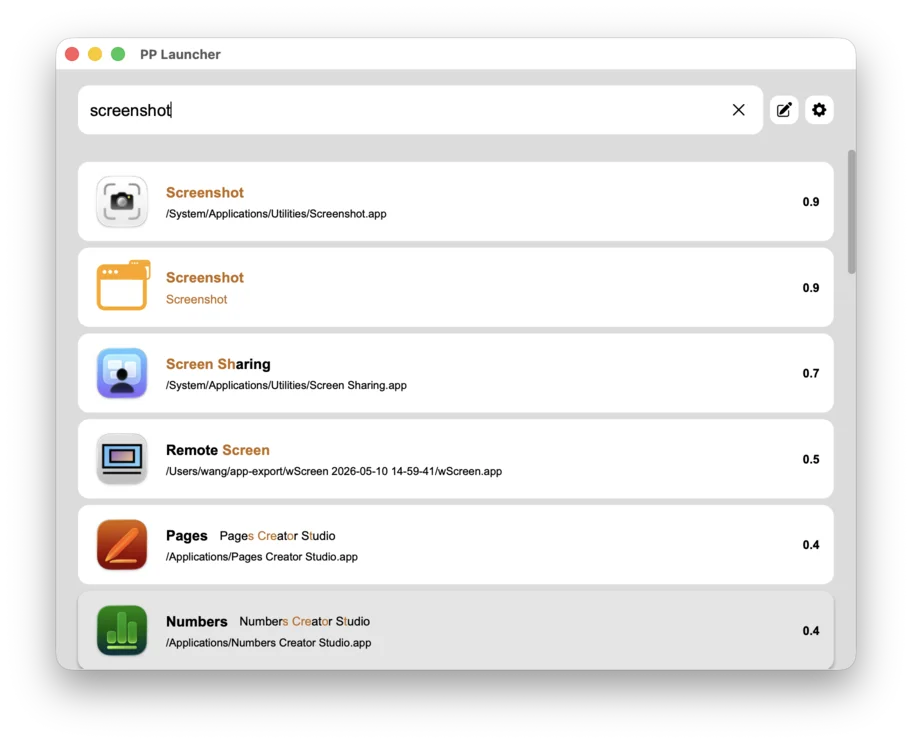
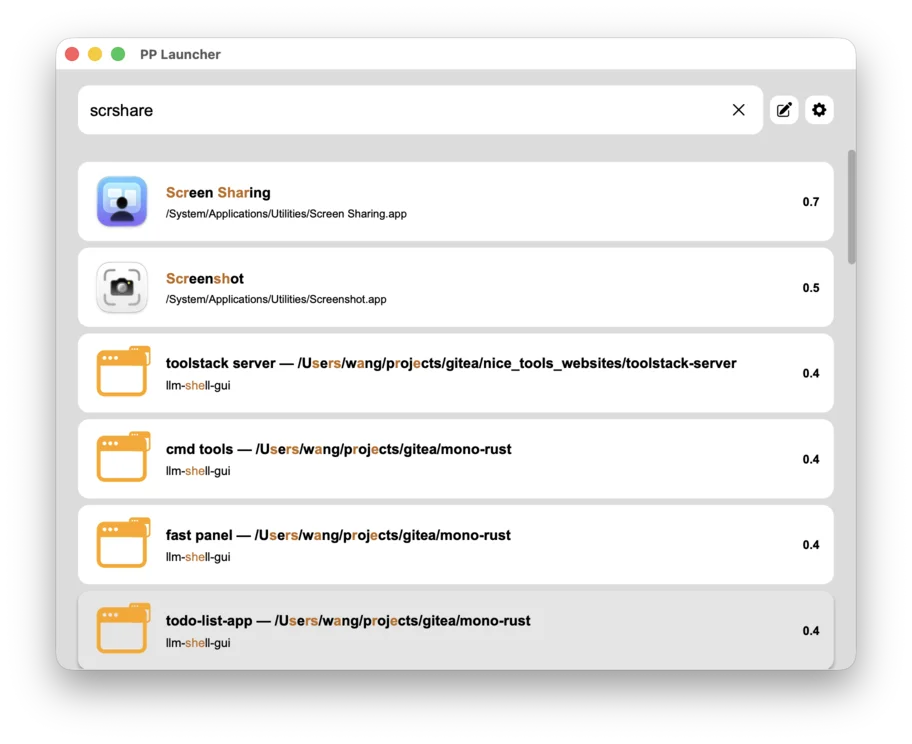
Search is fuzzy and ranked: English (e.g. "screenshot" matches Screenshot), mixed fragments (e.g. "scrshare" matches Screen Sharing), and on Chinese systems pinyin (full spelling, initials or mixed input) — results are scored by relevance with matched parts highlighted.
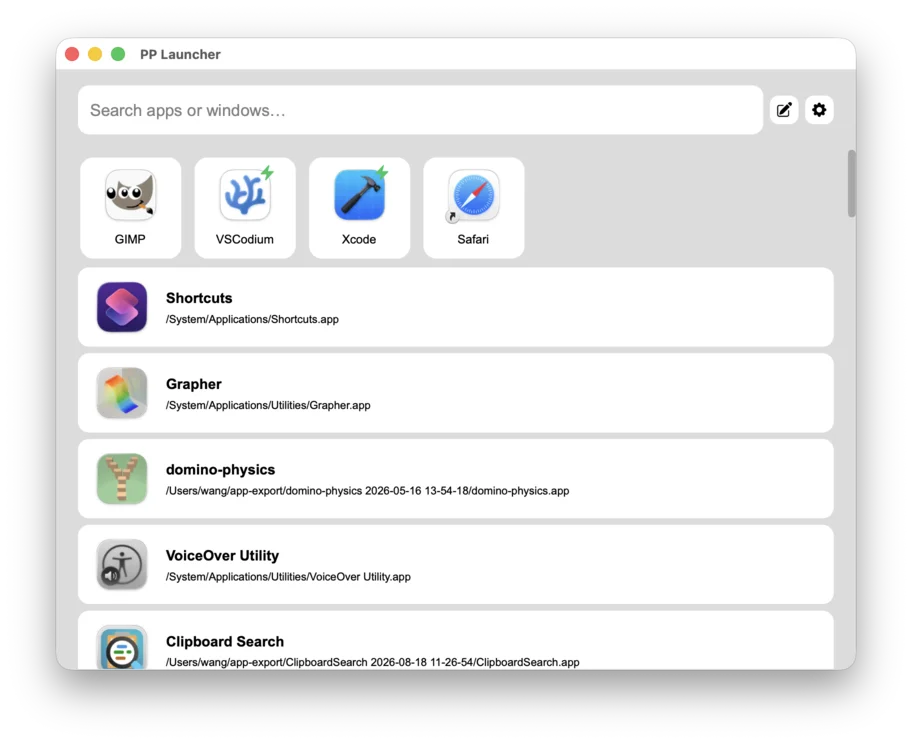
Custom list: pin everyday apps to a quick grid at the top, single click to launch. Drag to reorder, ✕ to remove in edit mode, and search the list below to add more. Press Enter with nothing selected to launch the first item.
Window search brings open windows into the results; Cmd+Tab-style window switching (Enhanced edition) jumps between them with a hotkey.
No network, no ads, no in-app purchases — everything runs locally on your Mac.
Download: App Store (Apple platforms), or the non-sandboxed build (with window management) directly from this website.
Download PP Launcher Enhanced
There are two official builds: the App Store version (PP Launcher) and the Enhanced version with the sandbox disabled (PP Launcher Enhanced), which adds window management, hotkey window switching and so on. The Enhanced build cannot be listed on the App Store, so it is distributed only via direct download from this website.
…
How to use:
1. Summon and search
Press the global hotkey to pop up the search panel (no hotkey by default — record one in Settings).
Type any fragment and system apps and open windows are listed in real time, e.g. "screenshot" matches Screenshot, Screen Sharing and more.
2. Custom quick list
Pin everyday apps to the quick grid at the top — single click launches them.
Move the selection with the arrow keys (up/down/left/right); press Enter with nothing selected to launch the first item.
3. Drag to reorder
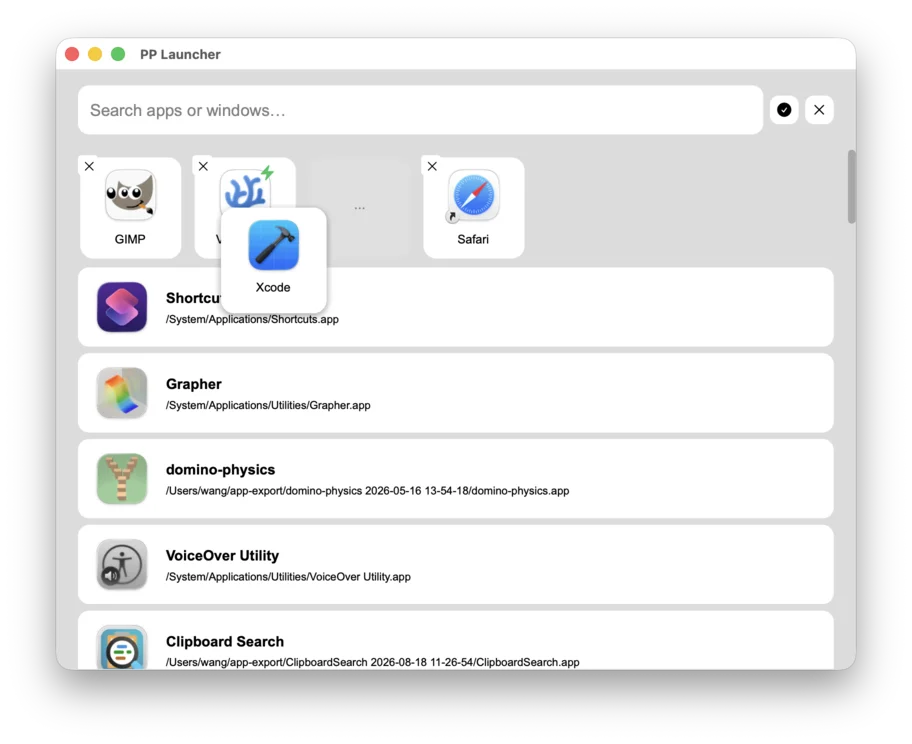
Click the edit button in the top-right corner to enter edit mode: drag tiles to reorder, ✕ to remove an app.
The list below only keeps unpinned apps — search it, click, or drag an icon into the grid to add quickly.
4. Fuzzy matching
Fragments and mixed input all match; results are ranked by relevance score with matched parts highlighted.
E.g. "scrshare" hits Screen Sharing and Screenshot in one go. Pinyin search (full spelling / initials / mixed) is built in as well — it follows the system language by default and can be forced on or off in Settings.
5. Cross-field window search
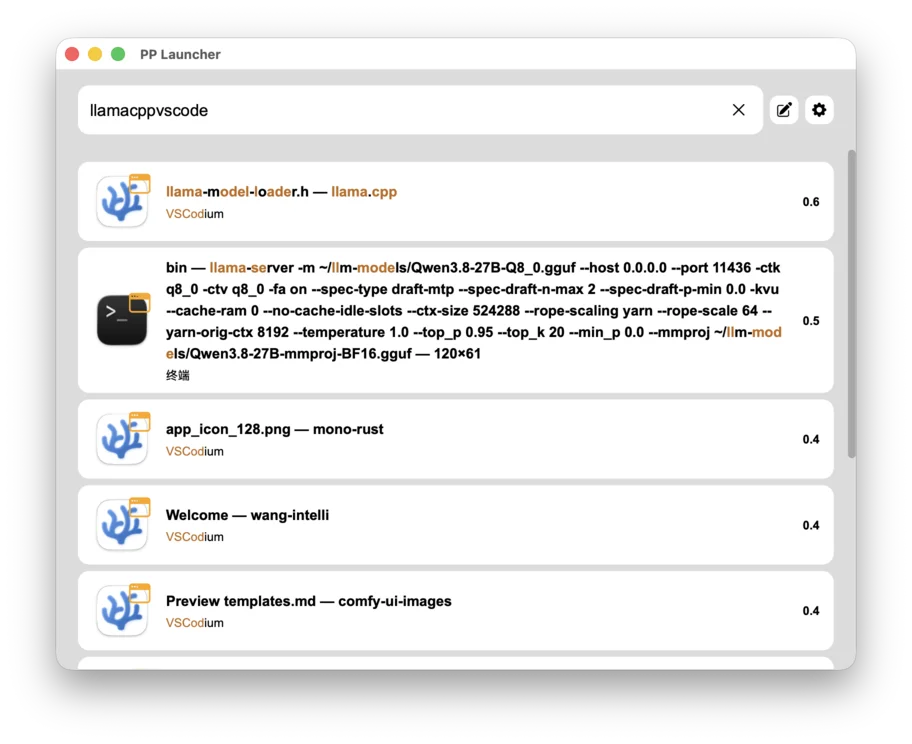
Window titles and their owning apps are matched across fields at the same time.
E.g. typing "llamacppvscode" jumps straight to the VSCodium window with the llama.cpp project open.
6. Appearance & behavior settings
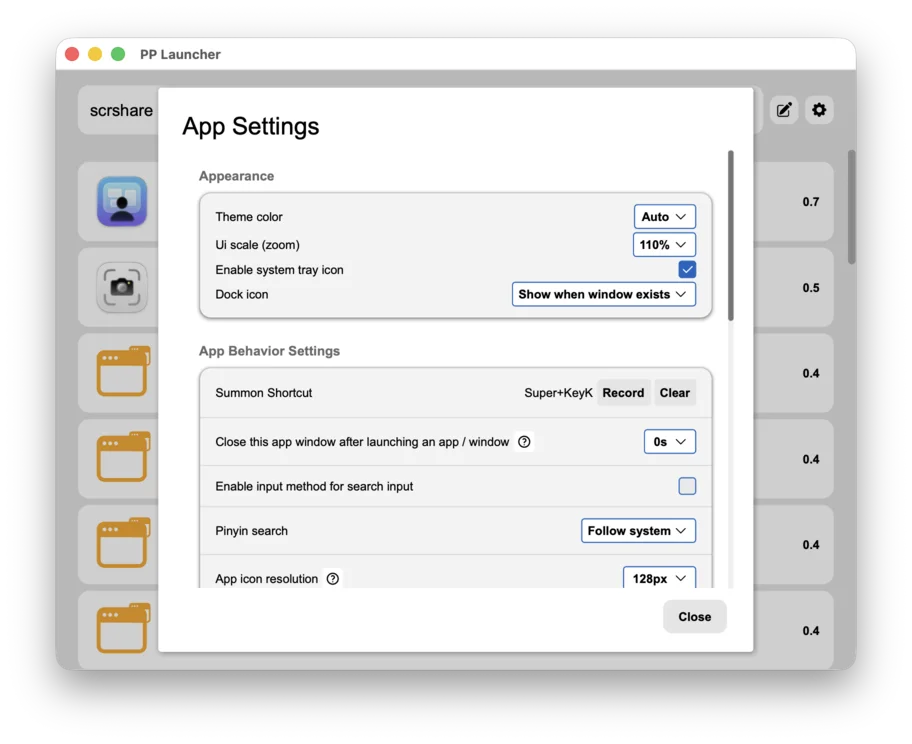
Theme color, UI scale, system tray icon, Dock icon display — tweak the look as you go.
Record the summon hotkey, auto-close delay, input method toggle for search, pinyin search (follow system / force on / force off), app icon resolution, and more.
7. Search languages & window switching
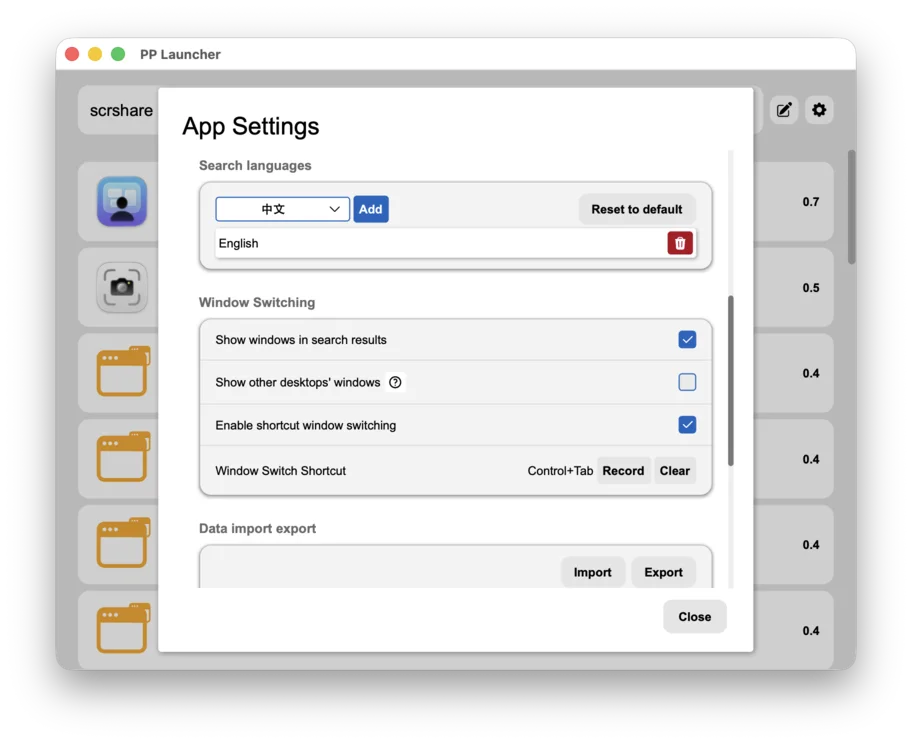
Search languages: add or remove specific languages so only their app-name variants are searched (the primary name is always searchable); one click resets to the default list.
Window switching: show windows in search results, show windows from other desktops, and switch windows with a hotkey (Control+Tab, Enhanced edition).
8. Import / export & extra scan directories
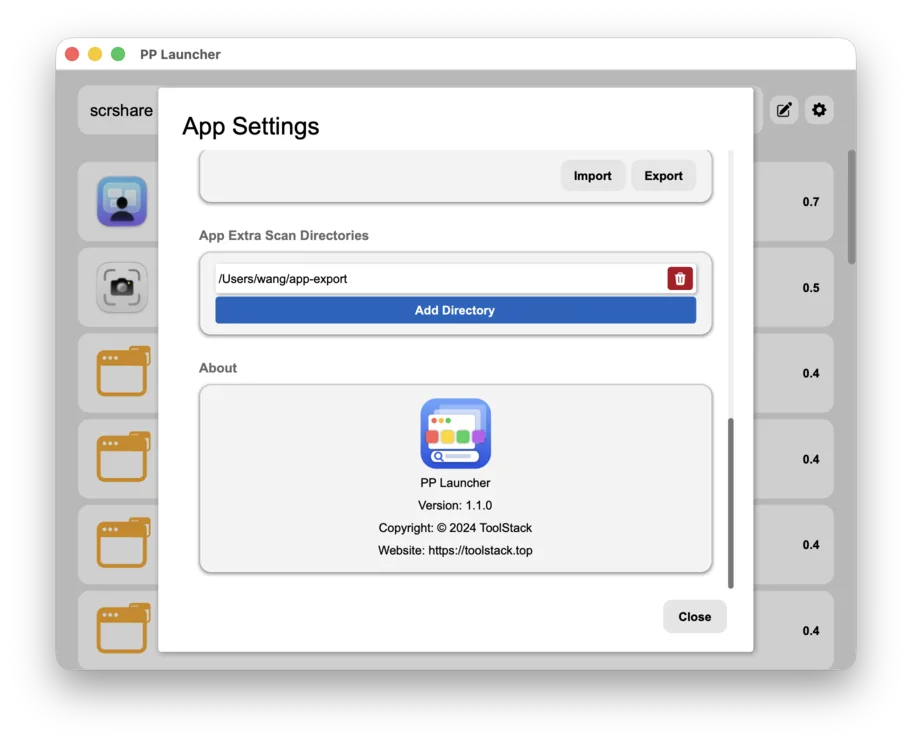
Data import / export: back up or restore all settings with one click (JSON).
Extra scan directories: add folders to extend the range of searchable apps; the About panel shows the version and the official website.